Using the agent
Using the terminal
Submit prompts, steer work, choose terminal rendering, and inspect agent output.
View as textOn this page
- Choose an interface
- Give a useful instruction
- Steer or queue a follow-up
- Waiting, cancellation, and retry
- Exit and compatibility commands
- Inspect and reuse output
- Copy the right response or code block
- Example: inspect, change, verify
- Read terminal diagnostics
- Open the current session in a desktop client
- Search the saved transcript
- Preview and save a theme
- When copying does not reach the clipboard
- Reuse and edit prompts
- Select text with the mouse
- Attach images
- Configure without interrupting the topic
Choose an interface
agent-cli --fullscreen
agent-cli --minimal
Fullscreen uses a retained terminal interface with a composer and conversation view. Minimal mode uses terminal-native append-only rendering. Use /terminal to inspect detected terminal capabilities when display behavior is unexpected.
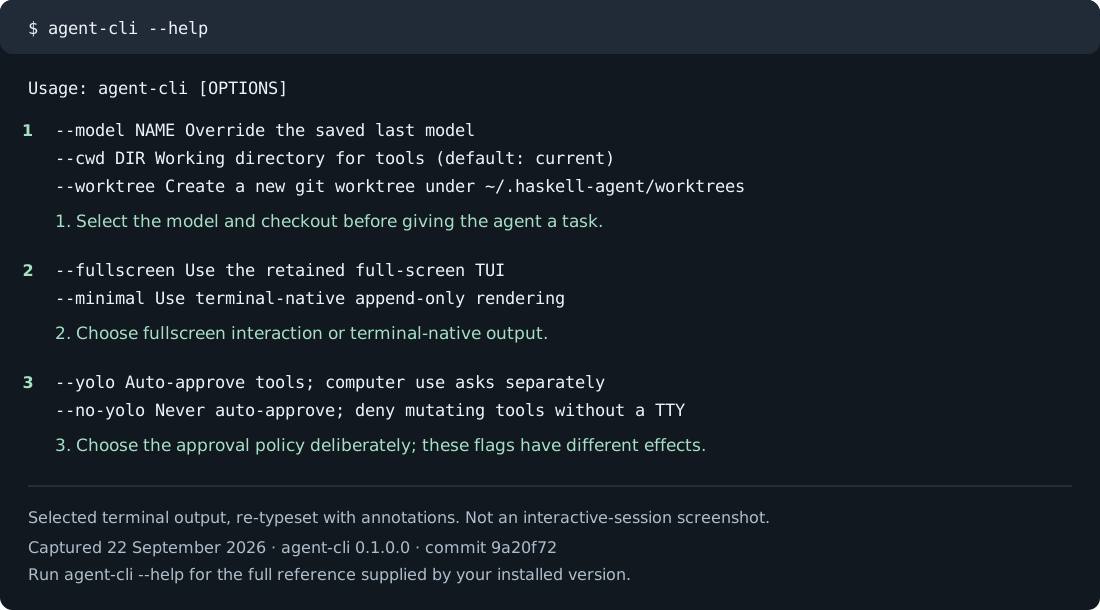
agent-cli --help output, re-typeset with annotations—not an interactive session screenshot. Read the captured text and version.Give a useful instruction
Describe the outcome, constraints, and how success should be checked:
Add validation for empty project names. Follow the existing error format,
add a regression test, and run the focused tests. Do not change the public API.
The response and tool results appear in the conversation. Tool calls may stop for approval. An instruction to inspect or explain is different from permission to execute every possible follow-up operation.
Steer or queue a follow-up
For example, if an implementation starts changing unrelated code, send the steering instruction below. The queued review is a separate follow-up, not a request to interrupt the current test run.
While a fullscreen turn is running, a plain text prompt normally steers the current turn. On macOS, when Apple Intelligence is available, the on-device model chooses instead: a correction, constraint, or missing detail of the running task steers it, and a separate later task is queued until the turn finishes. If Apple Intelligence is unavailable, or the request fails, the prompt steers. Use explicit commands to make your intention clear:
/steer Keep the existing public function names.
/queue After the tests finish, review the documentation changes.
/queue without a prompt lists waiting prompts. When the agent is idle, either prompt command starts a new turn.
Steering is text input for the active turn's next model-input boundary, not an interrupt signal to its currently executing tool. A draft with pending image attachments takes the normal queued-input path instead of text-only steering. Explicit /queue also stays on that path and is consumed after the active turn returns. Inspect pending images with /attachments before submitting; do not assume an image was inserted into an already-running request.
For an immediate interruption rather than steering, use Ctrl+O or supported Ctrl+Enter. With an empty draft this may send the oldest queued prompt; inspect /queue first. Canceling does not undo completed tools or remote mutations. Ask for the last confirmed result before retrying.
Waiting, cancellation, and retry
A short provider cooldown differs from a subscription usage reset. The automatic short cooldown retry accepts waits up to 120 seconds and does not retry that same cooldown indefinitely. Longer limits may lead to a usage-reset wait or an offered fallback. Read the wait notice and /usage rather than treating quiet output as a hung tool.
Canceling a cooldown wait in an interactive session returns the pending prompt as a draft; canceling a one-shot wait exits the run. Inspect whether anything already executed before sending again. The subscription fallback path does not silently switch from subscription credentials to API-key billing. /retry retries the retained failed turn, not an edited replacement.
The retry restores that turn's plan state and retained inputs, including its attachments; newly staged images or an edited draft do not replace those inputs. If the failed turn was checkpointed, retry continues from that checkpoint instead of constructing a fresh submission. The already-recorded user prompt is not duplicated in history. None of this guarantees idempotence of remote effects: inspect the last confirmed tool result before retrying a send, deployment or other mutation.
Exit and compatibility commands
/quit is the explicit exit command. Bare exit, quit, :q, :q!, :quit, :wq, and :wq! also exit; these are not prompts to the model. :reload is a developer runtime-reload command, not /reload-auth; :yolo is the compatibility approval toggle. Prefer named slash commands in shared instructions so their intent is clear.
/exit is also an alias of /quit. Normal exit follows the graceful cleanup path: it prints a resume hint to stderr when persistence provides a session ID, closes tools, and interrupts owned collaboration agents, snapshots them and joins their supervisors. Do not confuse this with deleting the conversation or undoing completed changes. Read the hint before closing the terminal and verify the resumed session's last confirmed result. Force-killing a process cannot promise the same cleanup or a freshly printed hint.
Inspect and reuse output
| Command | Action |
|---|---|
/diff | Show the Git diff, including untracked files |
/review | Ask for a review of current changes |
/find validation | Search this conversation in a pager |
/transcript | Open the session transcript |
/copy | Copy an assistant response |
/copy-code 1 | Copy the first fenced code block from the last response |
/edit-prompt | Edit a draft without submitting it |
Copy the right response or code block
/copy (alias /copy-last) selects the latest assistant response; /copy 2 selects the previous one. Indexes start at 1, counting backward from the latest. Add a destination to write a file: /copy 2 /absolute/path/to/answer.md. A path without an index uses the latest response. The remaining text is the destination, so use an unambiguous absolute path rather than a filename beginning with a number.
/copy-code defaults to code block 1 of the last response; /copy-code 2 chooses its second fenced block. A missing or out-of-range block reports an error rather than copying different content. /copy-diff copies the last diff block from the assistant's last response, not a fresh Git diff. Use /diff to inspect current checkout changes. If no assistant response exists, there is nothing to copy.
Example: inspect, change, verify
- Ask:
Find where project names are validated. Explain the current behavior without editing files. - Check the cited files, then submit the bounded validation request above.
- When the turn finishes, run
/diffand inspect the implementation and regression test. - Ask:
List the exact tests you ran, their results, and anything you could not verify.
Expected result: a focused change, a test for the empty-name case, and evidence of the test result. If the agent only describes a proposed fix, it has not necessarily edited or tested anything. Ask it to distinguish completed work from recommendations before continuing.
Read terminal diagnostics
/terminal (alias /ghostty) prints detected capabilities, not a terminal installer. kitty-keyboard concerns enhanced key reporting; inline-images concerns local image display, not model vision; osc52-clipboard enables terminal clipboard writes. native-progress, notifications, semantic-prompts and synchronized-output describe optional terminal integrations. tmux-passthrough indicates the tmux path. A no is a capability limitation, not a failed provider login. When keys or clipboard writes fail, compare outside a multiplexer before changing agent permissions.
Open the current session in a desktop client
/desktop is macOS-only and requires a persisted conversation and the separately supplied native application registered as dev.haskell-agent.macos. It sends a haskell-agent://session/SESSION_ID deep link through macOS open; it does not install that application. If launch fails, check that the app is installed and up to date, or continue with /resume in the CLI. A successful launch means the OS accepted the request, not that the desktop client completed every subsequent operation.
Search the saved transcript
/transcript (or /log) opens the saved conversation in $PAGER, falling back to less -R. In the default pager, type /text then Enter to search, n for the next match, N for the previous match, and q to return. A custom pager has its own controls.
/find timeout first filters transcript blocks case-insensitively across their titles, bodies, details and timestamps, then opens matching blocks in the pager. With no argument, /find opens the complete transcript so you can use the pager's search. No matches and no saved transcript have separate informational messages. A missing pager reports an error: install less or configure PAGER. This is viewing, not exporting; use /export to retain a Markdown file.
Preview and save a theme
In fullscreen mode, /theme or /t opens a live preview: arrow keys preview, Enter applies and saves the choice, and Escape cancels. Available themes are Auto (native terminal colors), Midnight, Daylight, Tokyo Night, Rose Pine Moon, and Oscura Midnight. For example, /theme tokyo-night selects Tokyo Night directly. Selection is saved to your harness configuration for later sessions. If saving fails, fix the reported configuration error before retrying. Minimal mode reports that theme selection requires fullscreen mode.
When copying does not reach the clipboard
Copy commands use the terminal's OSC 52 clipboard capability, not an automatic fallback to an operating-system clipboard program. If the capability is absent, they report terminal clipboard is unavailable. A success message means the sequence was emitted; a terminal or multiplexer can still block it. Check /terminal and your terminal's clipboard permissions.
To avoid that dependency, save an assistant response with /copy 1 /absolute/path/to/answer.txt, or use /export to save Markdown and copy from your editor. For /copy-diff, save the last response and extract its diff block; do not mistake it for a new Git diff.
Reuse and edit prompts
/history reads the shared prompt history, not just the current session's transcript. In the fullscreen picker, type to filter, select a result, and press Enter. Selection places the original prompt into the composer without submitting it; review paths and assumptions before sending. Cancel leaves the conversation unchanged. An empty history reports that no prompt history is available.
/edit-prompt opens the current draft in $VISUAL, then $EDITOR, falling back to vi. Save and exit successfully to return the edited text to the composer, still unsent. An invalid program or failed editor exit reports an error rather than sending the draft. To abandon changes, use your editor's discard-and-exit operation; that editor controls file saving.
Select text with the mouse
In fullscreen mode, disable mouse capture for native terminal selection:
/mouse offThis also disables application mouse clicks and wheel scrolling. Restore them with /mouse on; the preference is saved. Keyboard navigation remains available in either mode.
Attach images
When a screenshot or copied raster is already on the clipboard at session start, fullscreen mode shows a short hint above the prompt: Image in clipboard · Ctrl+V to paste. The hint is metadata-only: it inspects advertised pasteboard types, not image bytes, and it does not fire for Finder file copies. Ctrl/Cmd+V then attaches the image as usual.
Use /paste to attach a clipboard image and preview it in the terminal. /attachments lists queued images; /clear-attachments drops them.
The explicit image command first tries existing clipboard image-file paths, then bitmap data. Text-only clipboard content is rejected with advice to paste text normally. /paste --send Describe this screenshot. submits the newly read image immediately with that caption; without a caption it uses See attached image.. Ordinary /paste stages images for a later prompt rather than sending them.
Ctrl/Cmd+V prefers nonempty clipboard text, falling back to images. Idle bracketed paste can classify bitmap data first and then image-file paths; ordinary multiline text stays in the editor. During a running turn, nonempty bracketed text is inserted locally into the draft instead of waiting for clipboard classification. For example, paste a two-line error and stack trace, add your question, then submit the complete draft. Pasting itself is not consent to execute pasted commands.
Clipboard access reads the machine running the CLI. Linux needs wl-paste from wl-clipboard for Wayland or xclip for X11, with access to that desktop session; macOS uses native clipboard readers. Over SSH, upload an image and paste its server-side path rather than assuming access to your laptop clipboard. If the reader reports text, missing tools, or an unloadable file, repair that input and check /attachments before retrying.
Pending images are live request state, not a durable draft archive. Identical image bytes are deduplicated; limits are 16 pending images, 64 MiB total and 20 MiB per image. Inspect rejection notices and remove unnecessary images instead of repeatedly pasting. A normal submitted prompt consumes its pending attachments. A prompt consisting only of recognized image paths attaches/previews them first; follow it with your question.
An image shown by the agent's display tool is not automatically supplied to the model. The model's image-inspection tool must attach it to the model context. Image support depends on the provider and terminal.
Configure without interrupting the topic
/meta set the concurrent agent limit to 3Meta Console is separate from the coding conversation. Its typed configuration plan is validated and previewed before execution. Cmd+K (or Alt+K in terminals reporting that sequence) opens its prompt.
/configure REQUEST is an alias. Supported typed changes are connecting or selecting a provider account; adding, updating, removing, enabling or disabling MCP servers; MCP OAuth login and secret-environment entry; MCP startup strategy; web-fetch enablement, domain allowlist, timeout and byte limits; LSP enablement and server add/update/remove or secret-environment entry; and setting or clearing the concurrent agent limit. Account selection uses the account picker instead of silently choosing a similarly named account. Secret values belong in the host's secret-entry flow, not in your natural-language request.
The allowed session-command subset is /model NAME, /title-model NAME or --auto, /effort LEVEL, /fast, /shell ghci|bash|both|none, /computer-use [on|off], /codemod, /always-approve, /agents limit N and /skills reload. The concurrent limit must be 1–256. These still obey their ordinary availability and permission rules. Meta Console is not an arbitrary shell-command executor or a general editor for every configuration key.
An empty request or invalid/conflicting plan is rejected. A clarification asks you to resolve ambiguity; an informational answer need not change configuration. Review the preview's exact account, server names and scope before approving. Canceling approval applies no plan. If execution fails after approval, inspect the affected configuration and connection status before retrying; do not assume that earlier successful actions were rolled back. Restate only the remaining intended change or use the direct manager.
Use /help NAME for a specific command, and /quit to exit.